Protecting OpenShift ImageStreams
Image streams offer a method for continuously creating and updating container images. Whenever improvements are made to an image, tags can be used to assign new version numbers and monitor changes. Read the official documentation to learn more about OpenShift ImageStreams.
Backing up an ImageStream
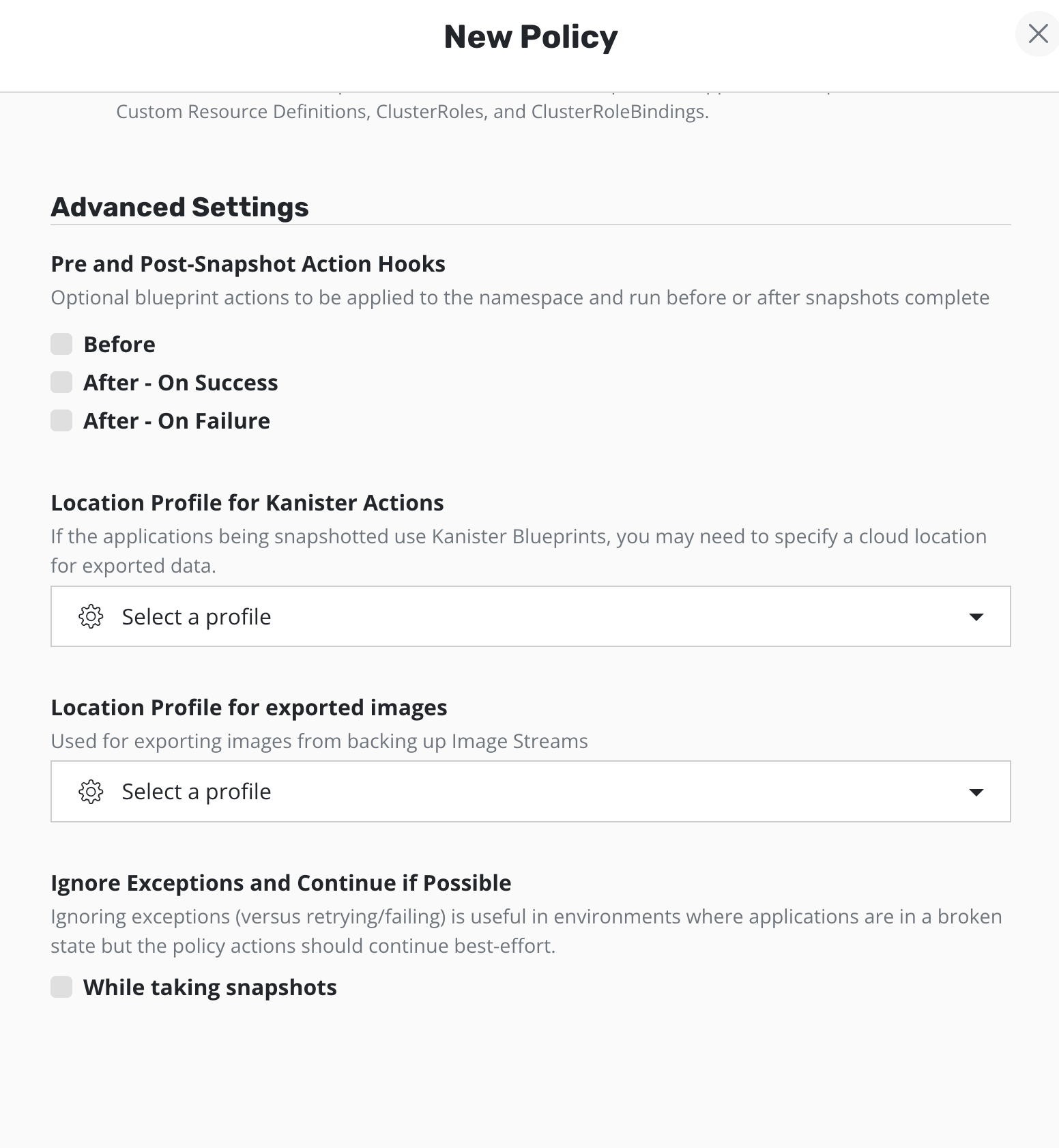
Since Veeam Kasten can discover the ImageStreams present in a namespace, they can be easily backed up. To protect ImageStreams in a namespace, create and run a policy and specify a destination location. The local images referenced in the backed-up ImageStream will then be stored to this location. After a successful backup, the exported images will appear in the restore point as a Kanister artifact.
If OpenShift image pruning has removed historical image digests from the internal registry, Veeam Kasten will automatically skip the missing images during backup and proceed with the remaining accessible images.
Restoring the Image Streams
The process of restoring backed-up ImageStreams is similar to restoring any other application using the Veeam Kasten dashboard. Restoring Applications can be followed for the detailed steps.
A Location Profile with the same name as the one used on the exporting cluster must be present in the importing cluster and will be referenced by the restore action.
When restoring an ImageStream into a namespace that already contains a tag with the same name, Veeam Kasten will overwrite the existing tag with the backed-up image. Tags that are identical to the backed-up version are skipped automatically.
Restoring an ImageStream that references an image from another ImageStream in the same namespace may require prioritizing the restoration of the referenced ImageStream first.
During the export process, a temporary intermediate persistent volume
will be created using the default storage class. In some cases, the
allocated size of this temporary intermediate volume set up for
exporting images may be insufficient for the intended image size. This
can result in a no space left on device error during this process. To
resolve this issue, it is recommended to adjust the Helm parameter
ephemeralPVCOverhead, which is set to a default value of 0.1 to
increase the storage overhead for this volume.
Configuring the StorageClass for Temporary Volumes
During backup and restore operations, Veeam Kasten creates temporary PVCs to stage ImageStream image data. By default, these PVCs use the cluster default StorageClass.
On clusters where the default StorageClass has a Retain reclaim policy, released
temporary PVs may accumulate over time and require manual cleanup. To avoid this, you
can configure a dedicated StorageClass for these temporary volumes using the
global.imageStorageClass Helm value.
When global.imageStorageClass is set, Veeam Kasten uses the specified StorageClass for
all temporary PVCs created during ImageStream backup and restore operations. When the
value is not set, Veeam Kasten falls back to global.persistence.storageClass; if that
is also unset, the cluster default StorageClass is used.
To configure the StorageClass, set the following Helm value during installation or upgrade:
--set global.imageStorageClass=<storage-class-name>