Protecting VMs on Kubernetes
KubeVirt is an open source, Cloud Native Computing Foundation project that enables users to run and manage Virtual Machine (VM) workloads on Kubernetes. As an inherently stateful workload, protecting VM-related manifests and volume data is critical.
Veeam Kasten officially supports Red Hat OpenShift Virtualization and SUSE Virtualization (Harvester) implementations of KubeVirt.
SUSE Virtualization (Harvester) support includes certain known limitations. See SUSE Virtualization (Harvester) Support Limitations for more details.
VM Protection Options
Veeam Kasten provides two approaches for creating backups of Virtual Machines:
Namespace-Based Backups
Traditional Kasten policies which select one or more namespaces, as detailed in Protecting Applications, may be used to protect VMs. When running a namespace-based policy that selects a namespace containing VMs, Veeam Kasten:
- Backs up all namespace resources, including all VMs in the namespace
- Executes a single BackupAction and ExportAction for each namespace
- Creates a single RestorePoint for each namespace
This approach is generally not preferred for two reasons:
- Restoring individual VMs from a namespace-based restore point may be complex when the restore point contains resources for multiple VMs.
- Backup failures related to one VM may negatively impact backups for other VMs in the same namespace.
VM-Based Backups
VM-based Kasten policies select one or more individual VMs or namespaces that contain VMs, simplifying policy management for common scenarios such as protecting VMs that exist within the same namespace but may require different backup frequency, scheduling, or data retention. When running a VM-based policy, Veeam Kasten:
- Automatically identifies and backs up resource dependencies for selected VMs
- Creates a BackupAction and ExportAction for each VM
- Creates a single RestorePoint for each VM
This is the recommended approach for protecting KubeVirt VMs.
How VM Backups Work
The following section provides additional details related to the operation of VM-based policies.
VM Selector
VM-based policies use the virtualMachineRef selector to target specific VMs. The selector supports:
- Exact VM names: Protect a specific VM by name
- Wildcard patterns: Use
*to match multiple VMs (e.g.,prod-*matches all VMs starting with "prod-")
For detailed syntax and examples, see the VM-Based Policy Selectors documentation.
VM Resource Discovery
When a VM-based policy runs, Veeam Kasten automatically discovers and captures VM dependencies through dependency graph traversal, as explained below.
Supported VM Dependency Resource Types
-
VirtualMachineInstanceType and VirtualMachineClusterInstanceType: VM configuration templates
-
VirtualMachinePreference and VirtualMachineClusterPreference: VM preference templates
-
DataVolumes: Storage definitions for VM disks
-
PersistentVolumeClaims (PVCs): Storage volumes backing the VM disks
-
ConfigMaps, Secrets, and ServiceAccounts: Configuration data referenced by the VM
-
NetworkAttachmentDefinitions: Virtual network configurations
-
StorageClasses: Storage provisioning policies for VM volumes
NoteIf a Virtual Machine references a NetworkAttachmentDefinition in a different namespace, it will not be included in the backup.
VM Dependency Discovery Process
At a high level, Veeam Kasten performs the following steps for each VM selected by a policy:
- Starts with the selected VirtualMachine resource
- Traverses references in the VM spec (volumes, configRefs, networkRefs)
- Follows ownership chains (DataVolumes → PVCs)
- Captures StorageClasses referenced by discovered PVCs
- Creates snapshots of all discovered volumes
The following example shows how resources are discovered from a VirtualMachine specification:
# Resources Discovered from VirtualMachine Specification

apiVersion: kubevirt.io/v1
kind: VirtualMachine
metadata:
  name: my-vm
  namespace: default
spec:
  # Instance Type reference (spec.instancetype)
  # Discovers VirtualMachineClusterInstanceType (if kind is empty or "VirtualMachineClusterInstancetype")
  # or VirtualMachineInstanceType (if kind is "VirtualMachineInstancetype")
  instancetype:
    kind: VirtualMachineClusterInstancetype  # or VirtualMachineInstancetype
    name: u1.medium

  # Preference reference (spec.preference)
  # Discovers VirtualMachineClusterPreference (if kind is empty or "VirtualMachineClusterPreference")
  # or VirtualMachinePreference (if kind is "VirtualMachinePreference")
  preference:
    kind: VirtualMachineClusterPreference  # or VirtualMachinePreference
    name: windows.11

  template:
    spec:
      # Access Credentials (spec.template.spec.accessCredentials)
      # Discovers Secrets referenced for SSH keys or user passwords
      accessCredentials:
      - sshPublicKey:
          source:
            secret:
              secretName: my-ssh-key  # -> Secret
      - userPassword:
          source:
            secret:
              secretName: my-user-password  # -> Secret

      domain:
        devices:
          disks:
          - disk:
              bus: virtio
            name: disk-0
          - disk:
              bus: virtio
            name: cloudinitdisk
          - disk:
              bus: virtio
            name: config-disk
          - disk:
              bus: virtio
            name: secret-disk
          - disk:
              bus: virtio
            name: serviceaccount-disk
          - disk:
              bus: virtio
            name: memory-dump-disk

      # Networks (spec.template.spec.networks)
      # Discovers NetworkAttachmentDefinitions for Multus networks
      networks:
      - name: default
        pod: {}
      - name: bridge-network
        multus:
          networkName: bridge-network  # -> NAD (same namespace)
      - name: other-ns-network
        multus:
          networkName: other-ns/network-name  # -> NAD (other-ns)

      # Volumes (spec.template.spec.volumes)
      # Discovers various resource types based on volume source
      volumes:
      # DataVolume reference
      - dataVolume:
          name: my-vm-disk-0  # -> DataVolume -> PVC -> StorageClass
        name: disk-0

      # PersistentVolumeClaim reference
      - persistentVolumeClaim:
          claimName: existing-pvc  # -> PVC -> StorageClass
        name: pvc-disk

      # CloudInit with secret references
      - cloudInitNoCloud:
          userDataSecretRef:
            name: cloudinit-userdata  # -> Secret
          networkDataSecretRef:
            name: cloudinit-networkdata  # -> Secret (if different)
        name: cloudinitdisk

      # ConfigMap reference
      - configMap:
          name: vm-config  # -> ConfigMap
        name: config-disk

      # Secret reference
      - secret:
          secretName: vm-secret  # -> Secret
        name: secret-disk

      # ServiceAccount reference
      - serviceAccount:
          serviceAccountName: vm-sa  # -> ServiceAccount
        name: serviceaccount-disk

      # Memory dump PVC
      - memoryDump:
          claimName: memory-dump-pvc  # -> PVC -> StorageClass
        name: memory-dump-disk
For the example VM shown above, the following resources would be discovered and included in the backup:
- VirtualMachine:
my-vm - VirtualMachineInstance:
my-vm(if running) - VirtualMachineClusterInstancetype:
u1.medium - VirtualMachineClusterPreference:
windows.11 - DataVolume:
my-vm-disk-0 - PersistentVolumeClaim:
my-vm-disk-0,existing-pvc,memory-dump-pvc - StorageClass: Referenced by
my-vm-disk-0,existing-pvc,memory-dump-pvcPVCs - NetworkAttachmentDefinition:
bridge-network(default namespace),network-name(other-ns namespace) - ConfigMap:
vm-config - Secret:
my-ssh-key,my-user-password,cloudinit-userdata,cloudinit-networkdata,vm-secret - ServiceAccount:
vm-sa
RestorePoint Creation for VM-Based Backups
VM-based policies create one RestorePoint per Virtual Machine that matches the policy selector.
Each VM-based RestorePoint contains:
- The VirtualMachine resource specification
- All discovered VM-owned resources (DataVolumes, PVCs, ConfigMaps, Secrets, etc.)
- Volume snapshots for all VM disks
- Any additional resources specified in
includeExtraResourcesfilters
Each VM-based RestorePoint includes the following labels:
k10.kasten.io/appName: The VM namek10.kasten.io/appNamespace: The namespace containing the VMk10.kasten.io/appType: Set to "virtualMachine" (distinguishes from namespace-based backups)
These labels enable querying and filtering VM-based RestorePoints. For examples and usage, see RestorePoint Labels.
Guest Filesystem Freezing
When a VM is in the Running state, snapshots can be either crash consistent
or application consistent. A crash‑consistent snapshot captures disk state at an
arbitrary point in time (similar to pulling the power cord) and may include
partially flushed writes or in‑flight transactional data. An application‑consistent
snapshot first quiesces applications and filesystems so that pending I/O is
flushed and on-disk structures are in a recoverable state; this greatly reduces
the likelihood of application repair or replay work after restore.
By default, Veeam Kasten attempts to produce application‑consistent backups of
Running VMs. It coordinates a short freeze window and then immediately
unfreezes after the underlying volume snapshots complete. If the VM guest agent
is absent, or the freeze/unfreeze operation fails, then the system falls back
to a crash‑consistent snapshot.
Guest OS freeze/unfreeze failures do not fail the overall operation. Failure to quiesce is captured as an exception in the action details.
The QEMU guest agent coordinates the freeze/unfreeze operations inside the guest OS. On Linux, the agent issues the commands to freeze and thaw the filesystems. For Windows guests, the agent coordinates the process using Windows Volume Shadow Copy Service (VSS).
Dashboard Overview
Use of the Virtual Machine dashboard requires specific Kubernetes permissions. See Veeam Kasten RBAC for details.
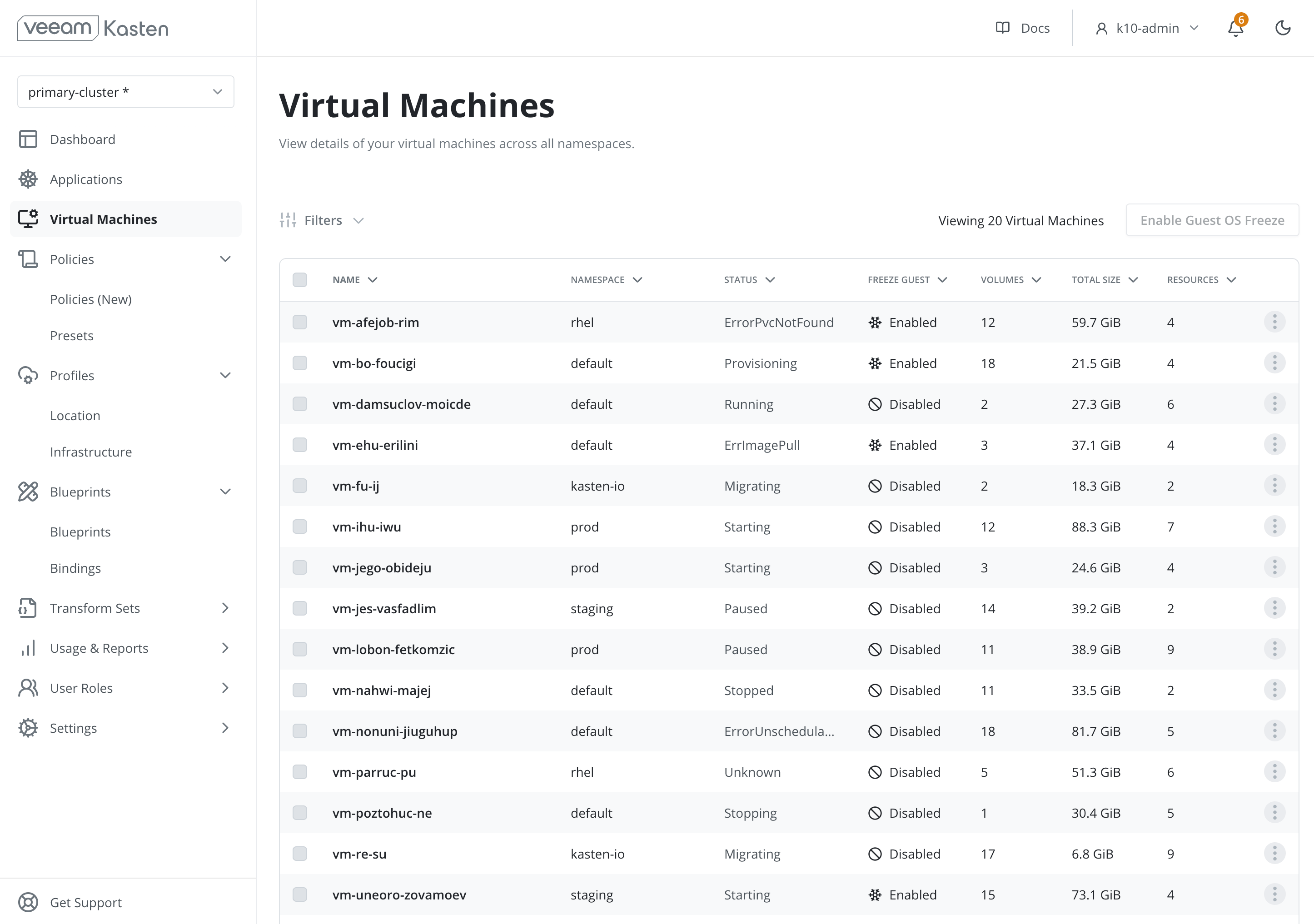
The Virtual Machines dashboard provides a cluster-wide table view of VMs and essential details including namespace and current VM status. From this page, administrators may apply filters to search for VMs based on specific criteria, manage whether or not Kasten will quiesce the guest filesystem during backup, view additional VM details, and initiate restore operations.
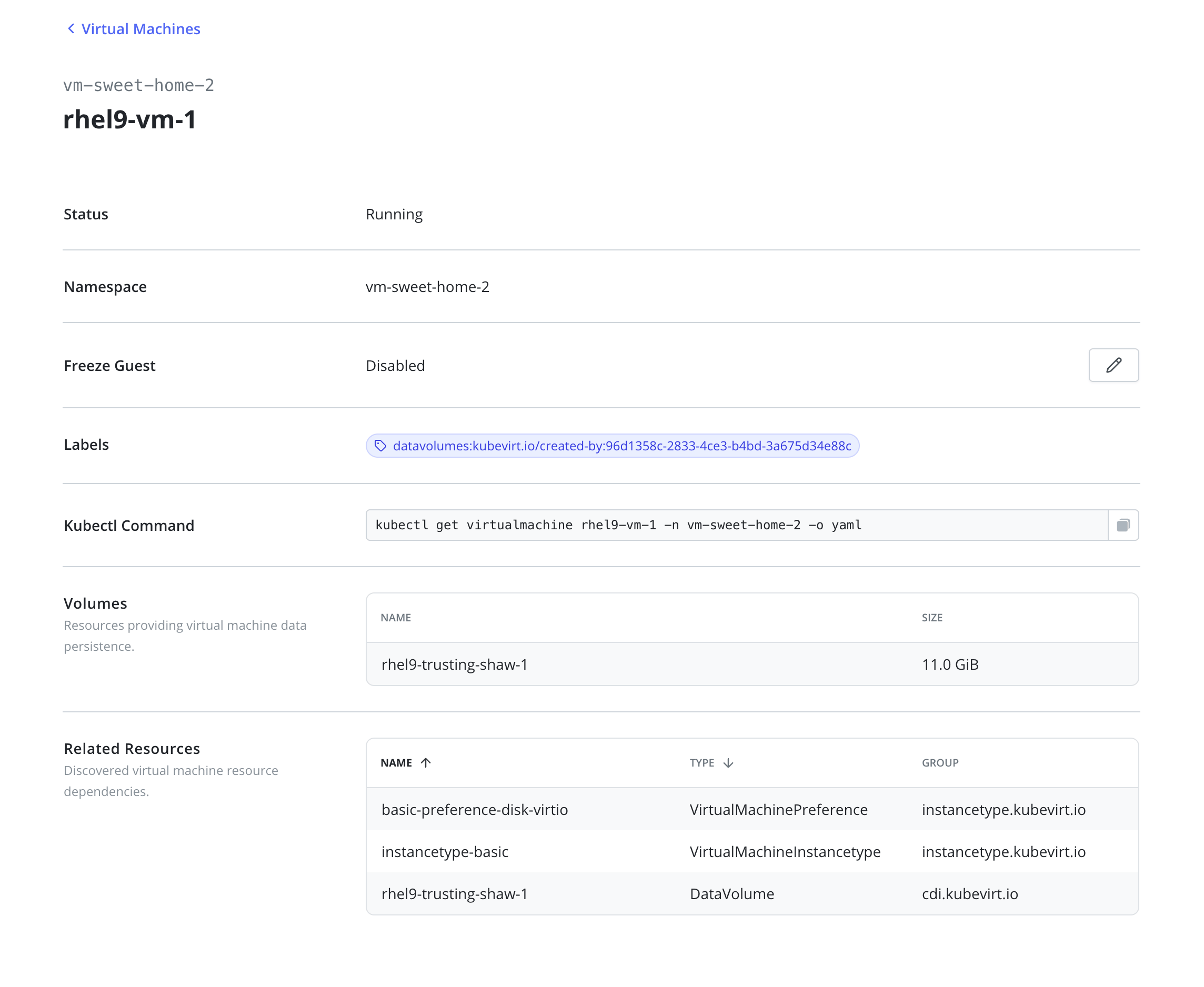
Clicking on a specific VM opens a view with additional details, including:
- Labels
- CLI command to retrieve resource YAML
- Persistent volumes referenced by the VM
- Additional resource dependencies referenced by the VM
Creating VM-Based Backup Policies
VM-based policies introduce alternative resource selection and filtering options, but otherwise share the same configuration options as traditional policies, including frequency, export, and retention settings. See Protecting Applications for additional details related to common topics.
To create a VM-based policy via API, see Policies API for details.
To create a VM-based policy via the Veeam Kasten dashboard:
-
From the Policies page, select Create New Policy.
-
Specify a policy name.
-
Specify the desired frequency, export, and retention settings or select a policy preset.
-
Under Selection Type, select Virtual Machines.
-
Under Specify VMs, enter the names of one or more namespaces containing VMs.
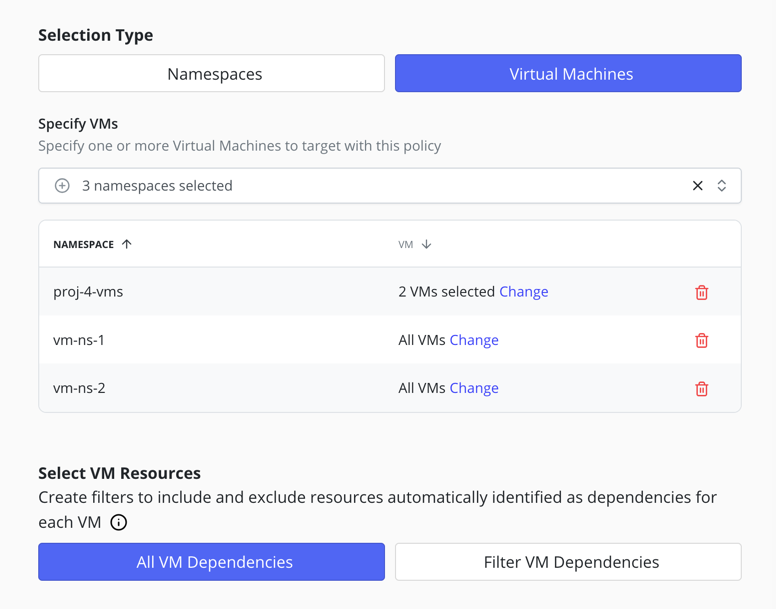
By default, Veeam Kasten will protect all current and future VMs in each of the specified namespaces.
-
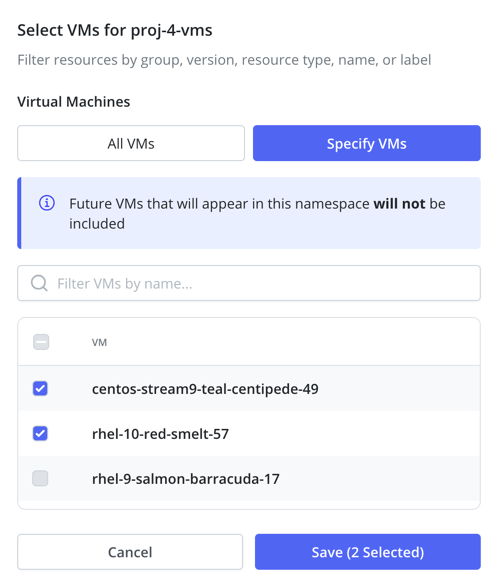
(Optional) Select Change beside a namespace to explicitly specify a subset of VMs to protect.
-
(Optional) Under Select VM Resources, select Filter VM Dependencies to define include and/or exclude filters to be applied to the any VM dependency resources discovered at runtime.
-
(Optional) Enable Select Additional Resources to define include and/or exclude filters to select namespaced resources to backup in addition to automatically discovered VM dependencies. This is useful for:
- Custom resources used for VM management or external integrations
- Detached PersistentVolumeClaims not directly referenced by VMs
- Service definitions for VM network access
See VM-Based Filtering for details.
-
Select Submit to save the policy.
Restoring Virtual Machines
The process of restoring Virtual Machines backups is similar to restoring any other application using the Veeam Kasten dashboard. See Restoring Applications for details on shared topics, including transformations.
For SUSE Virtualization (Harvester) VM support, Veeam Kasten provides additional functionality for performing backup/restore and migration of VMs and VM images. See Protecting SUSE Virtualization (Harvester) VMs and Images for more details.
Restoring Individual Virtual Machines
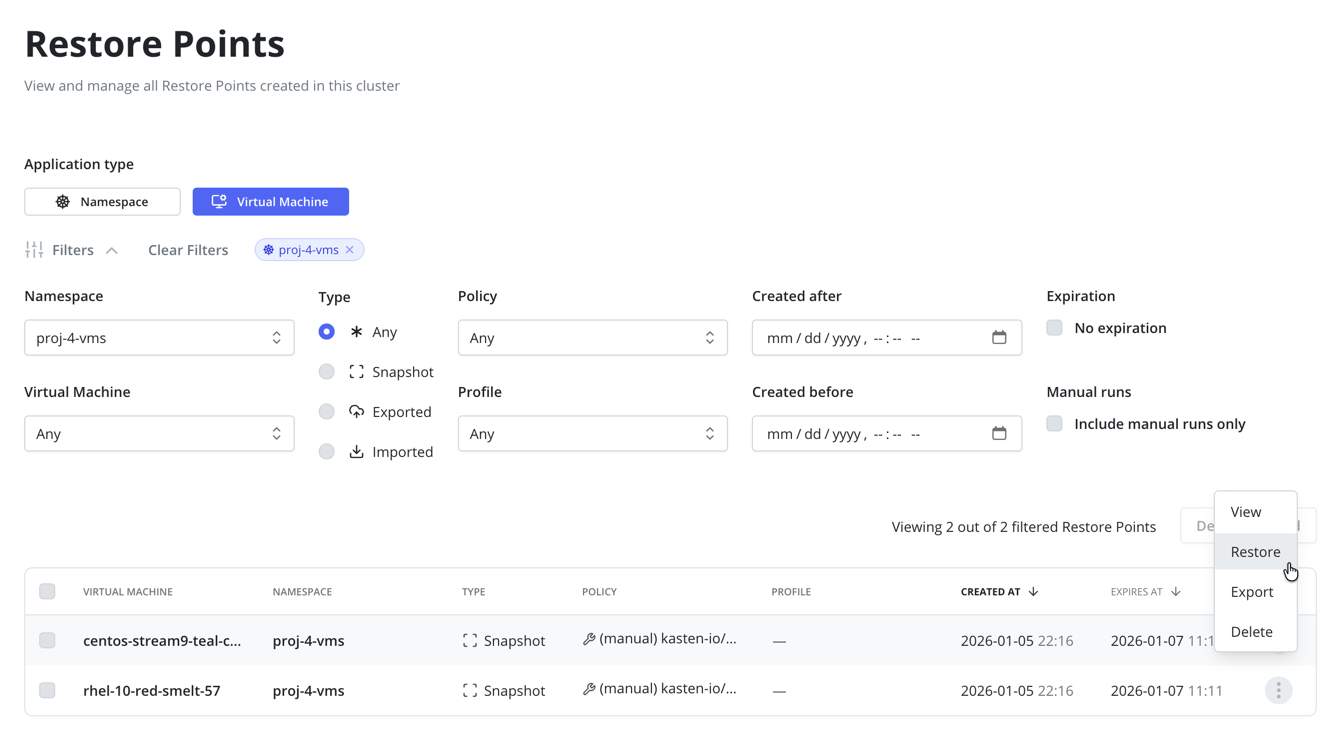
To restore an entire VM via the Veeam Kasten dashboard:
-
From the Restore Points page, select the Virtual Machine application type to display restore points created by VM-based policies.
-
(Optional) Apply additional filters to identify the specific VM to be restored.
-
Select Restore for the desired restore point as shown below:
Restoring Multiple Virtual Machines
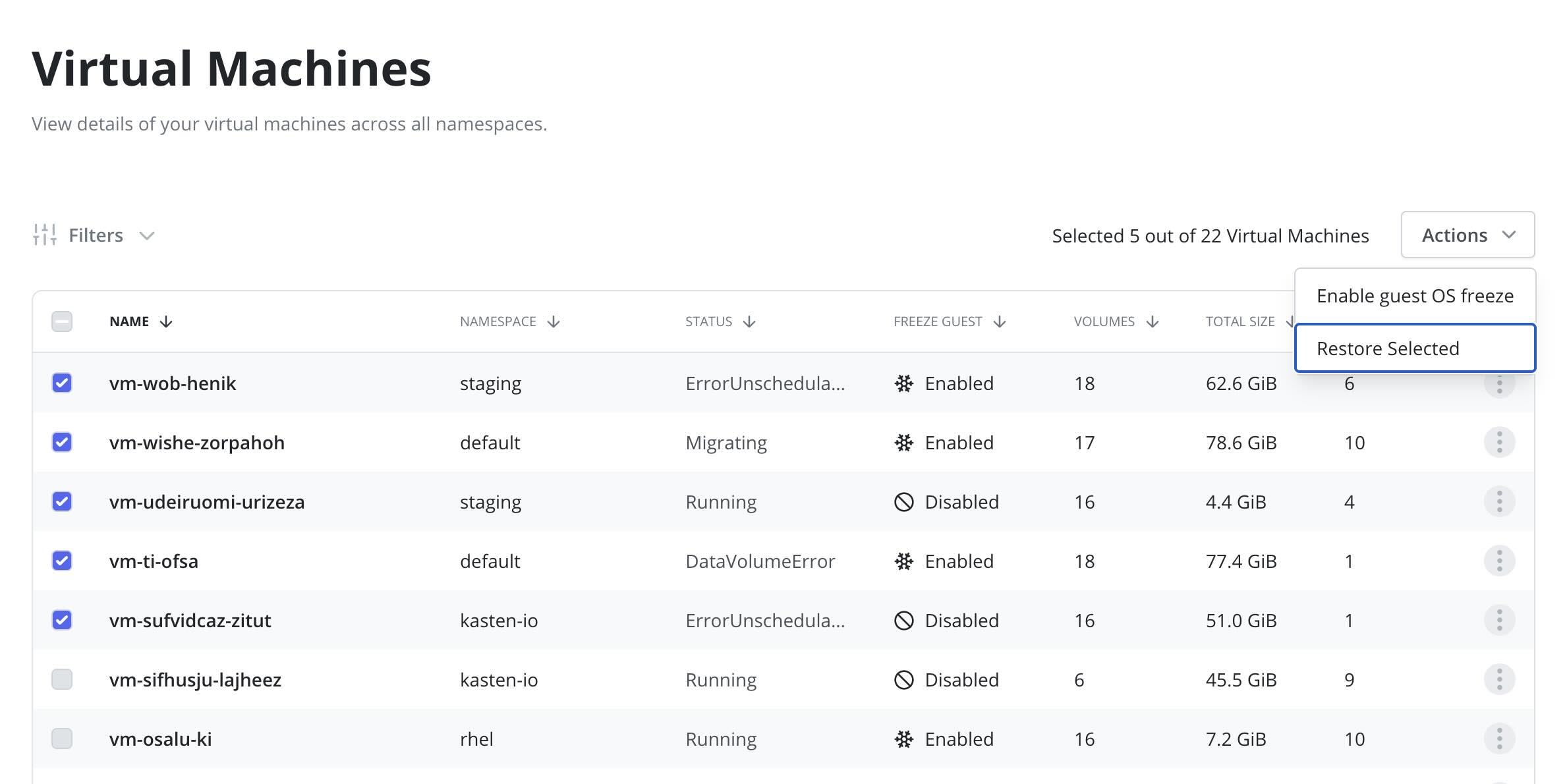
Similar to Restoring Multiple Applications, multiple Virtual Machines can be restored in a single operation. To initiate a batch restore of multiple VMs:
- Select the desired VMs from the Virtual Machines dashboard.
- From the Actions menu, click Restore Selected.
- Specify restore points for each VM. By default, the most recently created restore point is selected for each VM.
- Specify restore configuration settings as needed. Note that these options will be applied to each restored VM.
- Review the summary and click Restore. A single batch restore action will be created and initiate individual restore actions for each VM that may be monitored from the main dashboard.
Preserving MAC Addresses During Restore
By default, Veeam Kasten removes the original MAC addresses from all VM network interfaces. In some environments it may be necessary to restore VMs with original MAC addresses to ensure network connectivity.
To retain the original MAC addresses while restoring a VM via API,
set the preserveVMMacAddresses parameter to true
in the Restore Action.
To retain the original MAC addresses while restoring a VM via the Veeam Kasten dashboard, select Preserve VM MAC Addresses under Optional Restore Settings.
Partial Restore of Virtual Machines
Partial restore of virtual machines is only supported on OpenShift Virtualization 4.18 and later. SUSE Virtualization and earlier versions of OpenShift Virtualization may only perform a restore of a virtual machine if all associated volumes are selected for restore.
Partial restore allows users to selectively restore individual components of a virtual machine without impacting existing resources. With partial restore functionality, users can perform operations such as:
- Restore individual DataVolumes and PVCs while leaving other VM components untouched.
- Restore only the VirtualMachine object without affecting associated storage resources.
- Execute partial restores for multiple VMs in a single operation.
When restoring a VM without its required boot volumes, the restore operation may complete technically but result in a non-functional VM until the missing resources are restored separately. This behavior expected and requires additional manual or automated restores to fully recover the VM.
Configuring Guest Filesystem Freezing
By default, Veeam Kasten attempts to produce application‑consistent backups of
Running VMs by freezing the guest filesystem prior to snapshotting VM volumes.
The freeze step can be disabled from the Virtual Machines dashboard or by applying the annotation below:
kubectl annotate virtualmachine -n <namespace> <virtualmachine-name> k10.kasten.io/freezeVM=false
If it's not acceptable to have the Virtual Machine's guest filesystem frozen for the time that creating the snapshot takes, Veeam Kasten can be instructed to abort the snapshot operation and unfreeze the Virtual Machine. The Helm parameter below can be used to specify the maximum duration in time units before aborting:
helm install ... --set kubeVirtVMs.snapshot.unfreezeTimeout="3m"
If this field is not specified, the default timeout is 5 minutes.
Configuring Snapshot Concurrency for VMs
To minimize the time VMs spend frozen (especially critical for Windows VMs
with VSS requirements), Veeam Kasten uses a separate rate limiter for VM
snapshots. By default, only one VM snapshot operation can run concurrently
across the cluster. This can be adjusted using the limiter.vmSnapshotsPerCluster
Helm parameter. See Helm Configuration for details.
For example, if multiple VMs are being backed up in parallel the default limiter will serialize the snapshotting operations so that only one VM is frozen at a time. Once frozen, all of the VM's volumes will be snapshotted in parallel to minimize the amount of time spent frozen.
The VM snapshot limiter is independent of the other snapshot specific limiters. While a VM is being snapshotted other workloads can take snapshots in parallel, subject to the volume specific limiter.
Performing Manual VM-Based BackupActions
VM-based backups can also be triggered manually using the BackupAction API with a VirtualMachine subject. This is useful for:
- Ad-hoc backups before maintenance operations
- Testing backup configurations
- Integration with external automation systems
See the VM-Based BackupAction Example for complete API syntax and examples.